

The layout at a glance
- Sidebar (left). A slim rail of icons that stays with you on every page. Hover over it and it expands to reveal the full section names, along with your name and a sign-out button at the bottom.
- Main content area (center). Everything you’re working on (lists, profiles, dashboards, and forms) appears here. The section you’re currently in is highlighted in the sidebar.
- Global search (top). A search box near the top of the page lets you jump straight to any partner, deal, asset, or other record without hunting through menus.
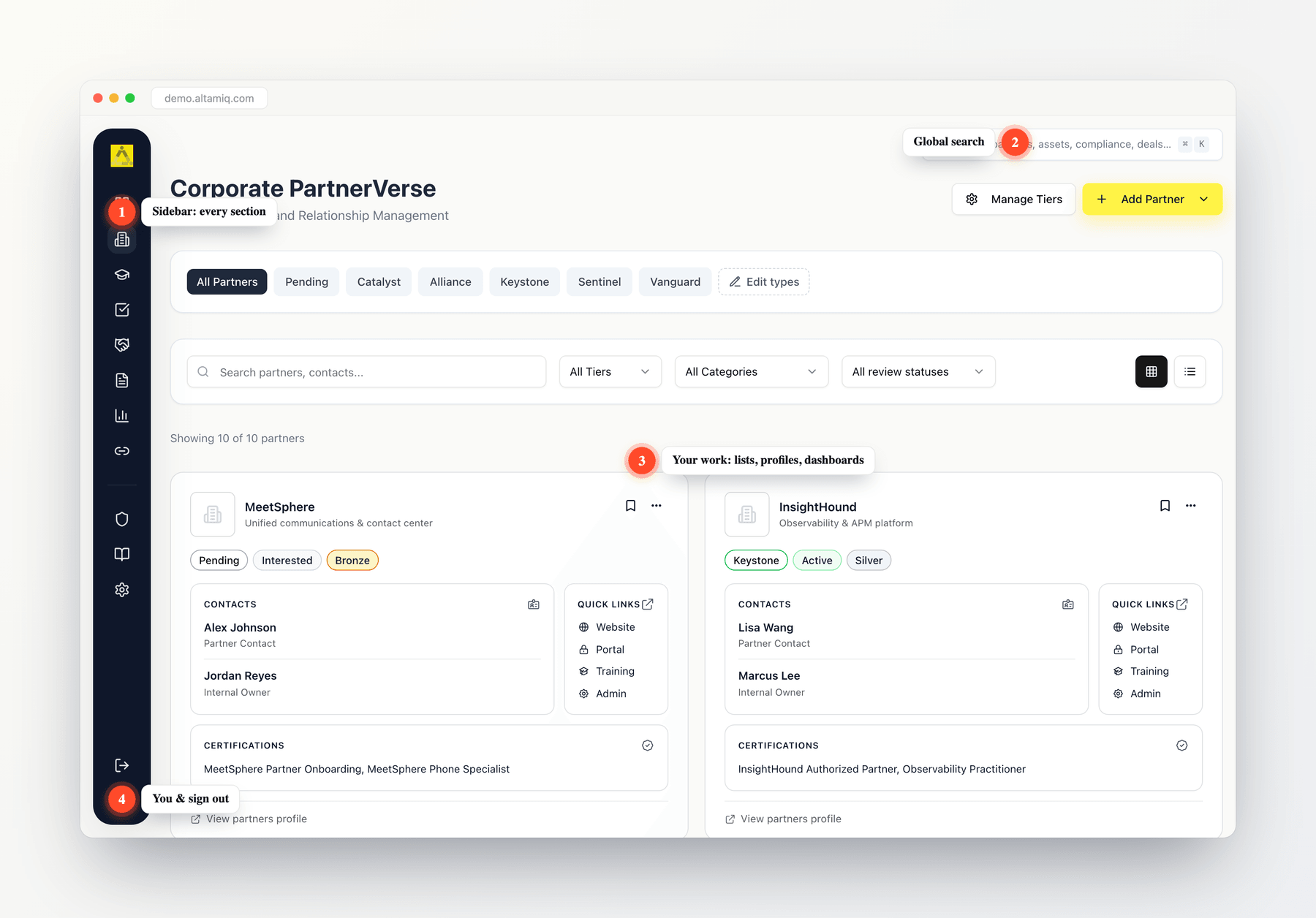
The AltamIQ workspace
The sidebar at a glance
The sidebar is split into two groups. The top group holds your everyday working areas; the lower group holds supporting tools, links, and settings. Hover the rail to see each label, then select an icon to open that section.Dashboard
Your home base: an overview of your partners, action items, and what needs your attention.
Partner Directory
Browse and search every partner. Select a partner here to open its full profile.
Enablement
Training and enablement content that helps partners get up to speed.
Tasks & Alerts
Your to-dos and notifications, so nothing important slips through the cracks.
Deal Registration
Register and track partner deals through the pipeline.
Marketing Assets
Shared marketing files and collateral you can browse and download.
Analytics
Charts and metrics that show how partners and programs are performing.
Affiliates
Manage affiliate relationships connected to your partners.
Compliance
Track partner compliance items and their status.
Knowledge Base
Reference articles and documentation for your program.
Community & Resources
Handy shortcuts that open the AltamIQ community and resource pages in a new browser tab.
Settings
Your account, security, and (for Admins) program-wide configuration and integrations.
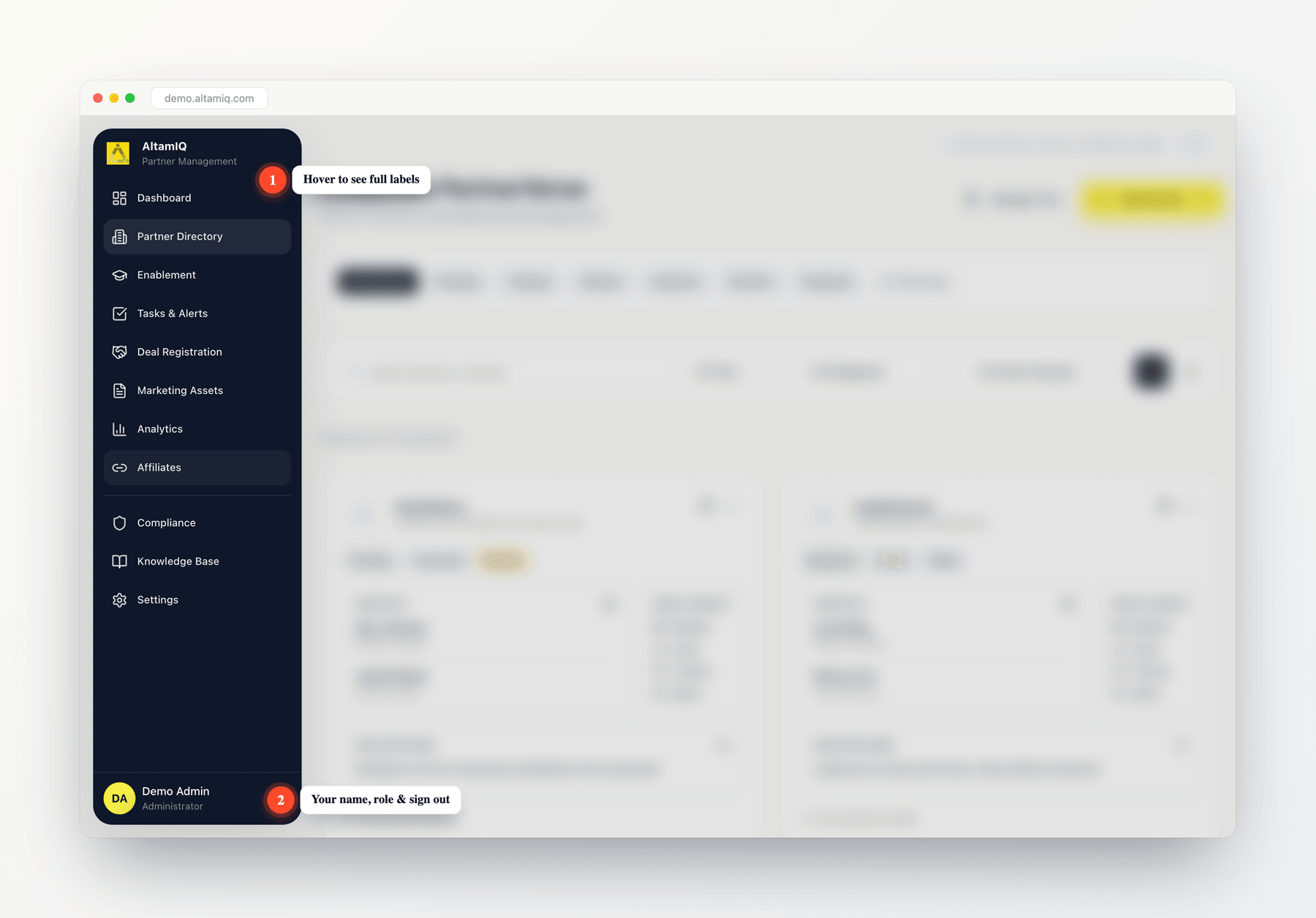
Hover the sidebar to expand it and reveal every section
What you see in the sidebar can depend on your role. Some areas (and some actions inside them) are only available to Managers or Admins.
Finding things fast
The fastest way to get anywhere is global search. Instead of clicking through sections, type what you’re looking for and jump straight to it. Search covers partners, deals, tasks, marketing assets, compliance items, certifications, knowledge base articles, affiliates, and partner notes and strategy. It can also take you directly to a page by name.1
Open search
Select the search box near the top of the page. You can also open it from your keyboard at any time: press ⌘K on a Mac or Ctrl+K on Windows. Pressing / on its own opens it too, as long as you’re not already typing in a field.
2
Type what you're looking for
Start typing a partner name, a deal’s client, a certification, an asset title, or a page name. Results appear as you type, grouped by type (Partners, Deals, Tasks, and so on).
3
Jump to it
Use the ↑ and ↓ arrow keys to move through the results and press Enter to open the highlighted one, or simply select a result with your mouse. To see everything in a group, choose View all at the bottom of that group. Press Esc to close search without going anywhere.
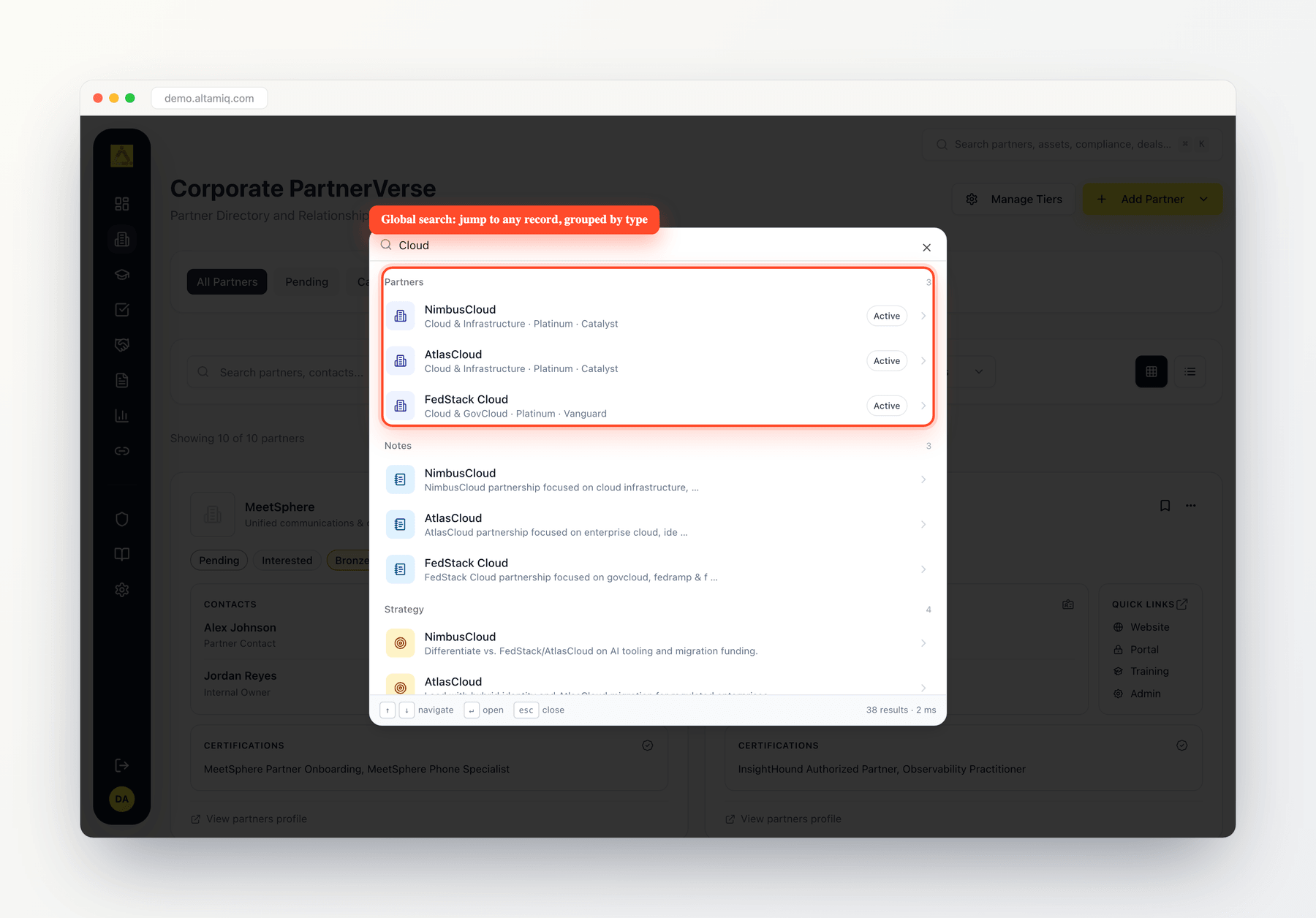
Global search finds partners, deals, assets, and more as you type
Opening a partner
Partners are at the heart of AltamIQ, and opening one is straightforward.1
Go to Partner Directory
Select Partner Directory in the sidebar to see the full list of partners. You can switch between a table and a card view, and filter or search the list to narrow it down.
2
Open the partner
Select a partner’s row (or use its View details option) to open that partner’s full profile, where you’ll find its overview, notes, strategy, assets, and related records.
Your account menu
Your account lives at the bottom of the sidebar. Hover over the sidebar to expand it and you’ll see your name and role, with a Sign out icon (a small door-with-arrow) beside them. Select it whenever you’re finished, especially on a shared computer. On a phone or smaller screen, open the navigation menu from the top-right corner and you’ll find the same details and Sign out option at the bottom of the panel.To manage your profile, change your password, or (as an Admin) adjust integrations and program settings, open Settings from the sidebar.