

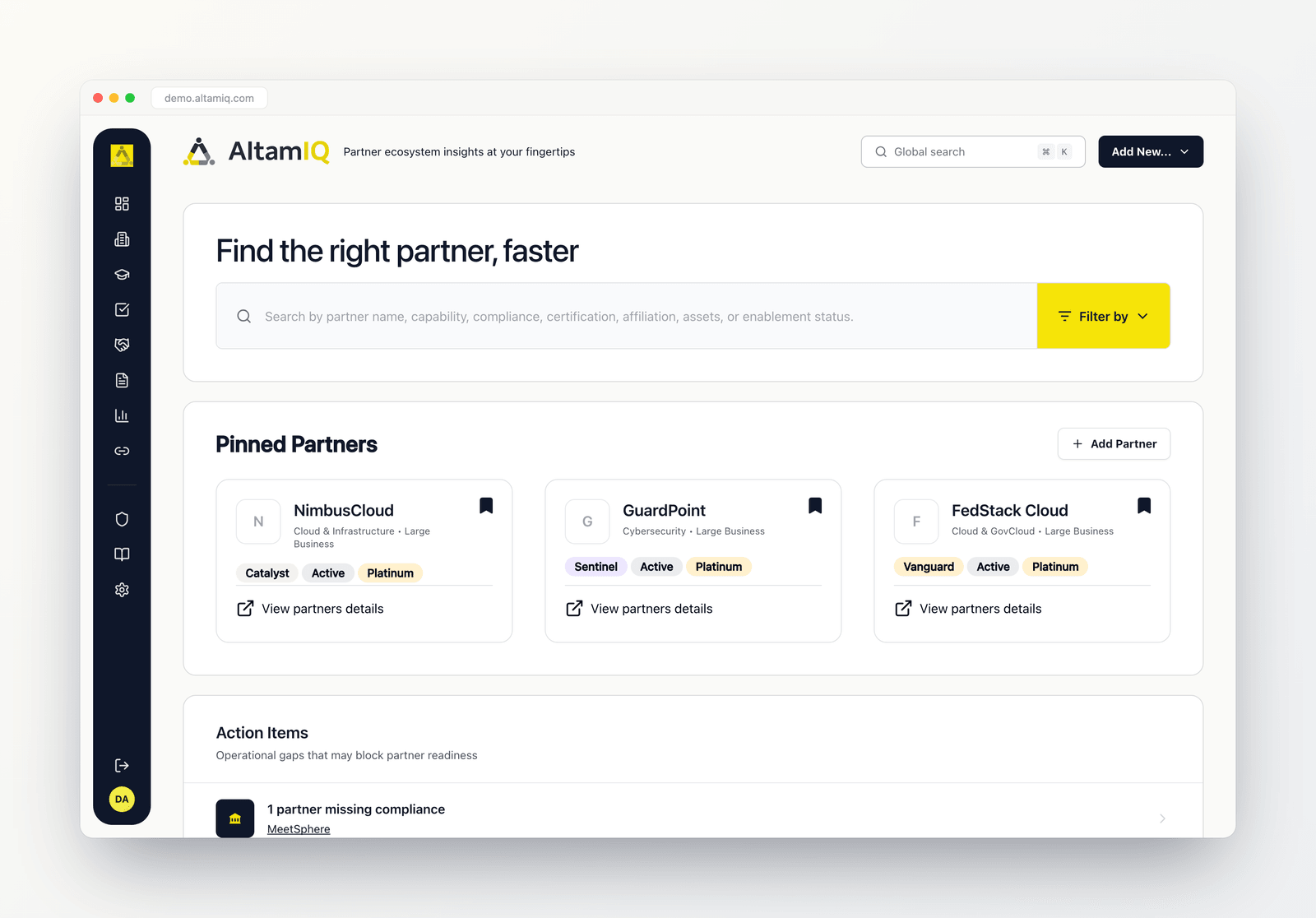
The AltamIQ Dashboard with the partner search, pinned partners, and action items
Find the right partner, faster
The first thing you see is a large search area titled Find the right partner, faster. This is a quick way to surface a partner without leaving the Dashboard. Start typing in the search box and matches appear right below it as you type. Search looks across each partner’s name, category, partnership status, partner type, primary offering, business type, points of contact, and category tags, so you can find a partner by more than just its name. For example, typing “cloud” will surface partners like NimbusCloud and FedStack Cloud.1
Type what you are looking for
Enter a partner name or a keyword. The results list updates instantly and shows the first three matches, with a count like “Displaying 3 of 12 matches”.
2
Open a match
Each result shows the partner’s logo, name, type, status, and tier. Select any result to jump straight to that partner’s full profile in the Directory.
3
See everything
Select View all matches in Directory to open the Partner Directory with your search already applied, so you can browse the complete list.
Filtering your search
Next to the search box is a Filter by button (the yellow control with the lines icon). Select it to open a panel where you can narrow the ecosystem by:Tiers
The partner tiers your program has configured, plus any tier label already assigned to a partner.
Type
Partner types such as Pending, Catalyst, Alliance, Keystone, Sentinel, and Vanguard.
Categories
Categories and category tags that appear on at least one of your partners.
Status
Partnership lifecycle stages: Proposed, Submitted, Screening, Approved, Activated, Managed, Evaluated, and Retained, Expanded, or Exited.
Employee Size
Company size bands, from 0 to 50 employees up to 10001 and above.
Pressing Enter in the search box, rather than picking a result, takes you to the Partner Directory with your search term carried across so you can work with the full list there.
Your ecosystem at a glance
Below the search area are two overview cards that summarize where your program stands.Partner Distribution
The Partner Distribution card shows a donut chart of every partner grouped by type, with the total partner count in the center and a percentage on each slice. A legend beside the chart lists each partner type (Catalyst, Vanguard, Keystone, Alliance, Sentinel, and Pending) with its exact count, so you can see the shape of your ecosystem in one glance. Hover a slice to see that type’s count and share of the total.Affiliate Overview
The Affiliate Overview card shows the total number of affiliates connected to your program as one large number. Affiliates help you track referral and partner-driven growth in one place. Select View Affiliates Directory to open the full affiliate list.Pinned Partners
The Pinned Partners section keeps your most relevant partners one click away, so you can move faster during active conversations and follow-up work. Each pinned partner appears as a card with its logo, name, type, status, tier, and a View partners details link.1
Add a partner
Select Add Partner (or Add on a phone) to open the picker. Search for a partner by name and select it to pin it.
2
Browse your pins
Pinned partners show three at a time. If you have more than three, use the page controls at the bottom of the section to move between pages.
3
Unpin a partner
Select the filled bookmark icon in the top corner of a pinned card to remove it. Your pins update right away.
If you have not pinned anything yet, this section invites you to Pin partners for quick access. Partners already pinned will not show up again in the picker, so your list stays clean.
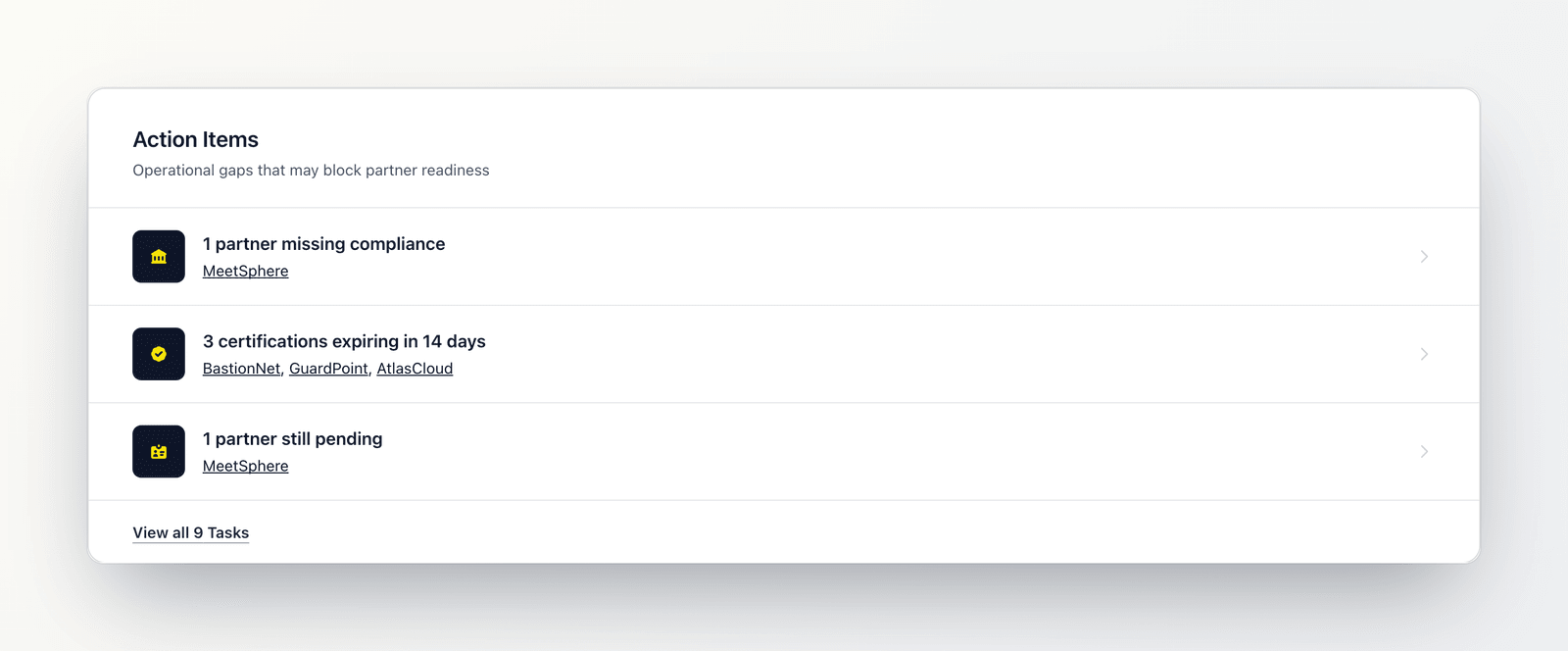
Action Items surfaces operational gaps, with partner names you can select to fix them
Action Items
The Action Items section highlights operational gaps that may block partner readiness. Each row names the partners affected and links straight to where you can resolve the issue.Partners missing compliance
Partners missing compliance
Partners that have no compliance records, or none marked Compliant. Select the row to open Compliance and follow up. The named partners are also direct links to each partner’s profile.
Certifications expiring in 14 days
Certifications expiring in 14 days
Partners linked to team certifications that expire within the next two weeks. Select the row to open Certifications and take action before they lapse.
Partners still pending
Partners still pending
Partners whose type is still Pending and have not yet been categorized into a full partner type. Select the row to review them in the Directory.
Enablement Overview
The Enablement Overview section summarizes certification and training status across your team. Three quick numbers sit at the top:- Total Cert Assignments: how many certifications have been assigned in total.
- Achieved Certifications: how many have been earned and are still valid.
- Expiring Soon: how many are within their risk window and need attention.
Refreshing and errors
The Dashboard loads your data automatically when you open it. If something goes wrong, you will see a Couldn’t load dashboard data message with a Retry button. Select Retry to load it again.Who can do what
- Admin: can do everything, including deleting records.
- Manager: can create and edit, but cannot delete.
- Viewer: has read-only access and can view the Dashboard, search, and open records without making changes.