

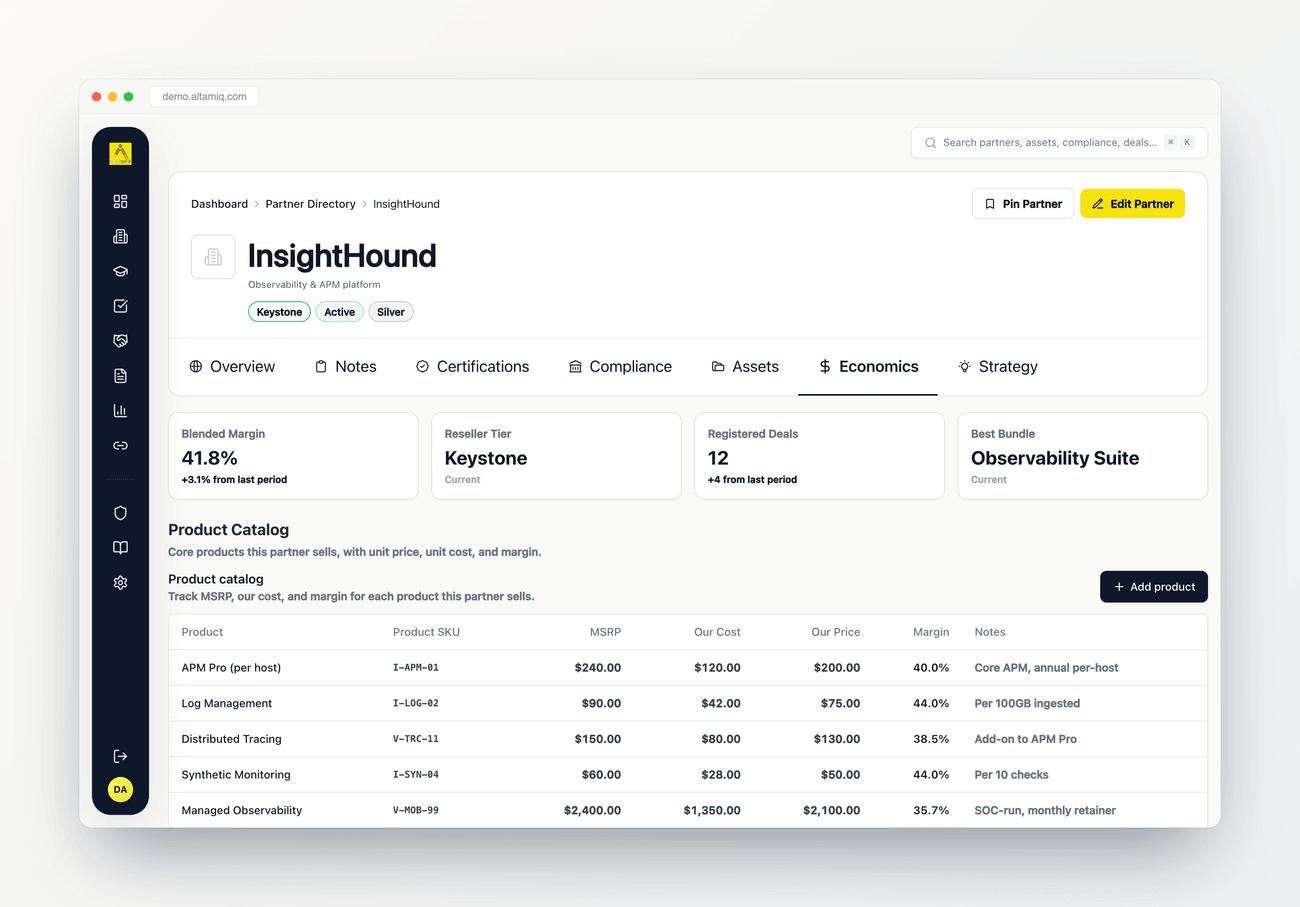
The Economics tab: a KPI strip on top, then the product catalog with per-product margins
Who can do what. Admins can do everything here, including deleting products, services, and bundles. Managers can add and edit them but cannot delete. Viewers have read-only access: they see all the numbers but the Add, Edit, and Delete controls do not appear for them.
How to open it
1
Open a partner
Go to the Partner Directory and select a partner to open its profile.
2
Select the Economics tab
In the row of tabs under the partner header, choose Economics. It sits between Assets and Strategy.
The KPI strip
Across the top of the tab is a strip of key numbers that summarize the partner’s economics at a glance. Each KPI shows its current value and, where available, how it has changed since the last period. Typical KPIs include:Blended margin
The average margin across everything this partner sells, weighted by revenue. Your single best read on profitability.
Reseller tier
The partner’s current tier, which often drives discount eligibility and benefits.
Registered deals
How many deals are registered against this partner, tying the economics back to real pipeline.
Best bundle
The bundle delivering the strongest economics for this partner right now.
Product Catalog
The Product Catalog is a table of the core products this partner sells, with the pricing and margin for each one. It is the heart of the Economics tab.
The Margin column is worked out for you as
(Our Price minus Our Cost) divided by Our Price, shown as a percentage. Because it is derived, it updates live as you type new pricing while adding or editing a product.
1
Select Add product
Select Add product in the top right of the Product Catalog.
2
Enter the product details
Fill in the product name, and optionally an Internal SKU and a Vendor SKU. You can fill either or both so your team can search by whichever they know.
3
Set the pricing
Enter the MSRP, Our Cost, and Our Price. The Margin field updates automatically as you type, so you can see the impact of each change.
4
Save
Add any internal notes, then select Add product. The new product appears in the table with its calculated margin.
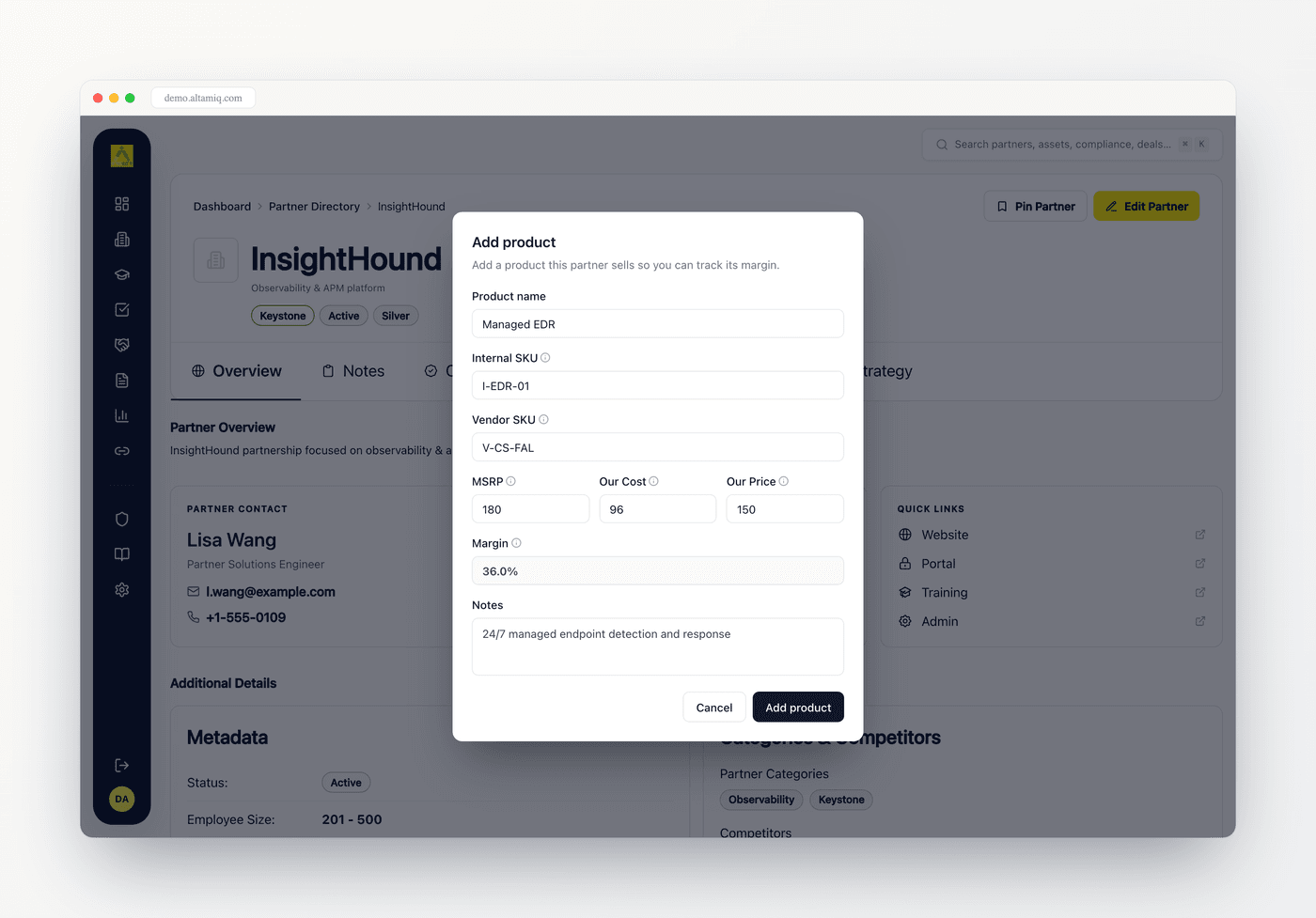
The Add product dialog, where the Margin recalculates live from Our Cost and Our Price as you type
To change a product, select the pencil icon on its row. To remove one, select the trash icon (Admins only) and confirm. Deleting a product cannot be undone.
Wrap-Around Services
Below the catalog, Wrap-Around Services covers the implementation, onboarding, and managed services you attach to the core products. These are the offerings that turn a product sale into a full solution, and tracking them here keeps the true economics of a deal complete rather than product-only.Bundles
Bundles are named packages made up of products and services, with their economics rolled up into a single view. A bundle lets you see the combined price, cost, and margin of a go-to-market package, so you can compare bundles and lead with the ones that perform best.Economics Summary
The Economics Summary pulls the catalog together into a blended margin, a revenue mix, and an attach-rate view. It answers the higher-level questions: how profitable is this partner overall, where does the revenue come from, and how often do services and bundles attach to product sales.Discount Governance and Tier Advancement
At the bottom of the tab are two guidance callouts:Discount Governance
A reminder of the approval thresholds for discounts, so pricing stays within policy and the right person signs off when a discount is large.
Tier Advancement
A view of where the partner sits against the next tier, so you can see what it takes to move them up and unlock better terms.