

How to sign in
Signing in takes just a moment. You’ll need the email address your Admin set up for you and your password.1
Open AltamIQ
Go to your organization’s AltamIQ address in your web browser. You’ll land on the sign-in screen.
2
Enter your email
Type the email address associated with your account into the Email Address field.
3
Enter your password
Type your password into the Password field. To double-check what you’ve typed, select the eye icon at the end of the field to reveal your password, and select it again to hide it.
4
Select Sign In
Select the Sign In button. Once your details are confirmed, you’ll be taken straight to your Dashboard.
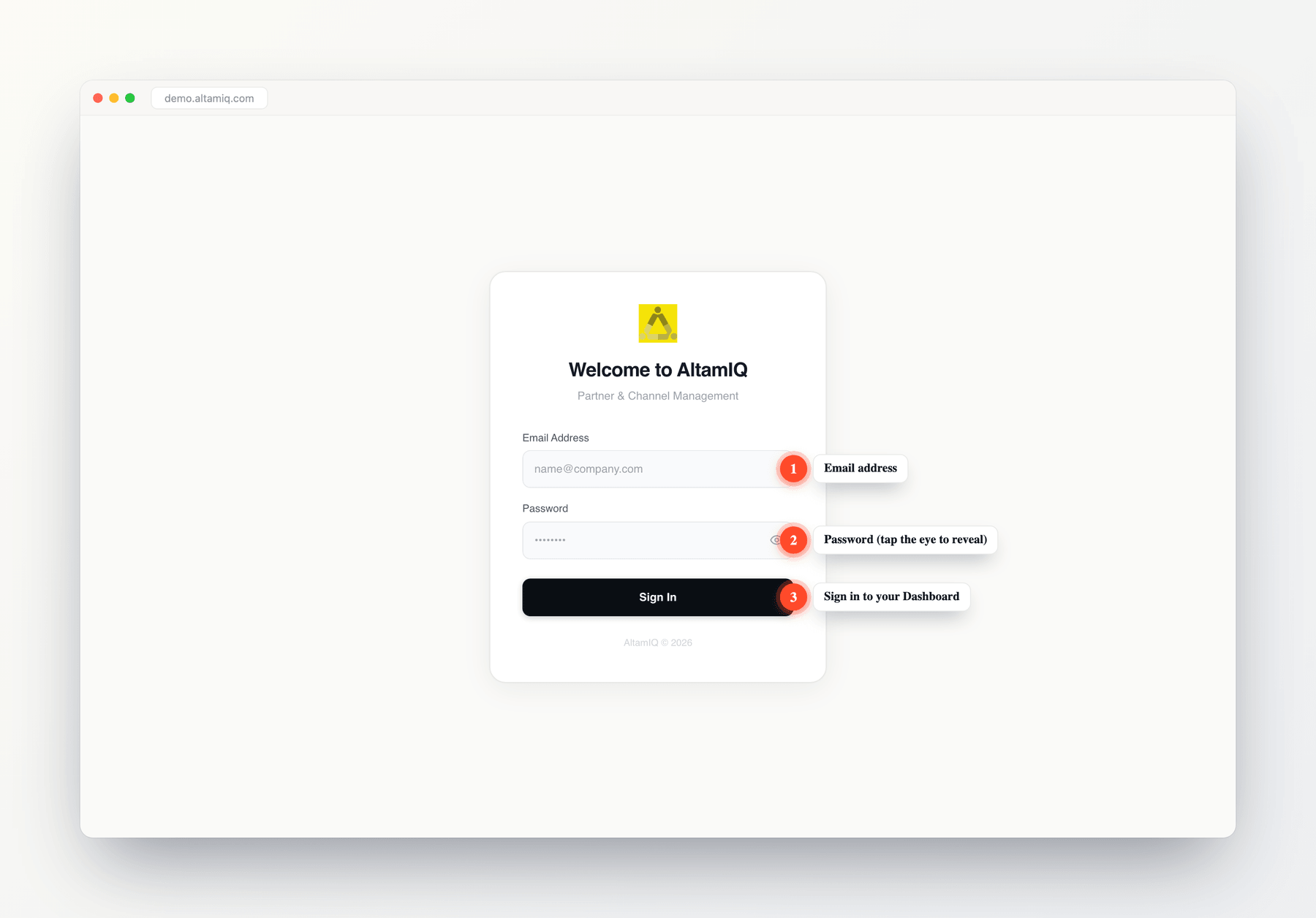
The AltamIQ sign-in screen
Your first sign-in
The first time you log in, you’ll be using a temporary password provided by your Admin. For your security, AltamIQ asks every new user to set their own password before they start using the app.New accounts are flagged as must change password on next login. After signing in with your temporary password, set a new one so only you know it. Your new password must be at least 8 characters long.
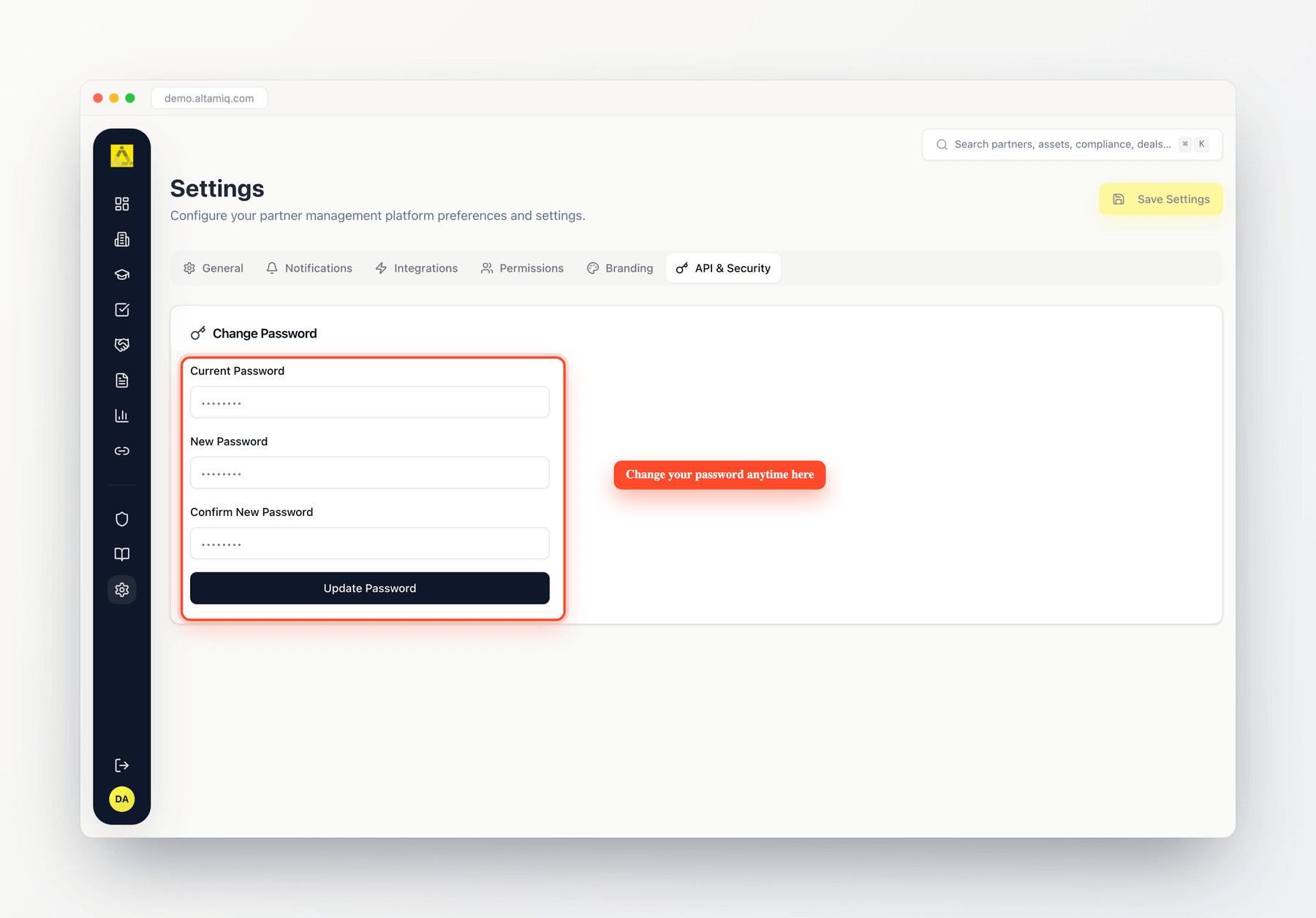
Change your password anytime under Settings, API & Security
Staying signed in & automatic sign-out
Once you’re in, AltamIQ keeps you signed in as you move around the app, so you won’t have to re-enter your password every time you open a new page.Trouble signing in
Account issues are usually quick to resolve. Here’s how to handle the most common ones. “Login failed” or wrong password. Double-check your email address and password, then try again. Use the show/hide (eye) icon to confirm your password is typed correctly and that Caps Lock isn’t on. You don’t have an account yet. AltamIQ accounts are created for you by your organization’s Admin, so there’s no self-service sign-up. If you’ve never received login details, ask your AltamIQ Admin to set up an account for you. You forgot your password. There is no self-service “forgot password” option on the sign-in screen. If you can’t remember your password, contact your AltamIQ Admin. They can reset it for you, which gives you a fresh temporary password. You’ll then be prompted to set a new one of your own the next time you sign in (just like your first login).If you can still sign in but simply want to update your password, you don’t need an Admin. Just use Settings → API & Security → Change Password as described above.