

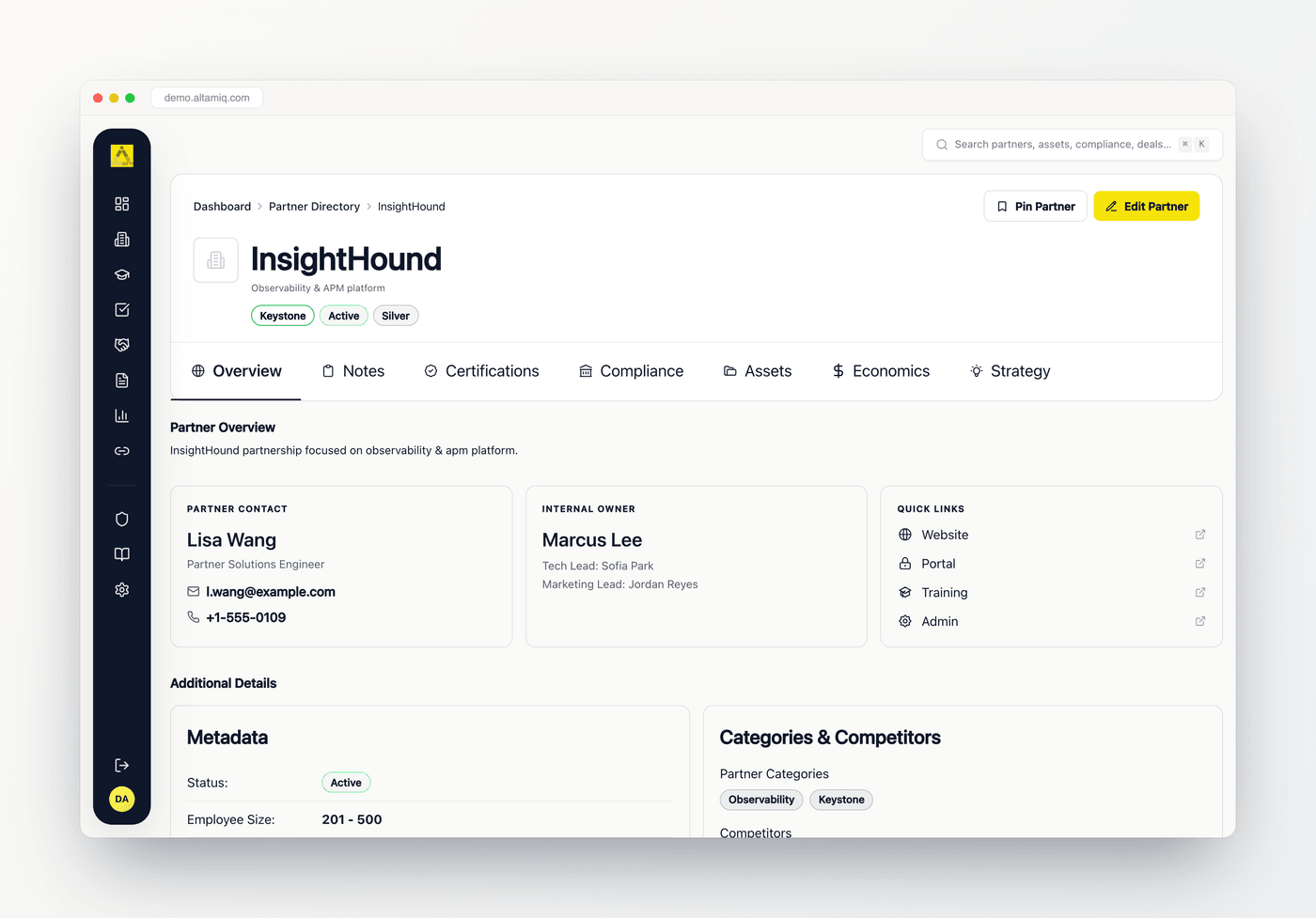
A Partner Profile, with the header on top and the tab row beneath it.
Who can do what on this page:
- Admin can do everything, including deleting assets.
- Manager can create and edit content, but cannot delete.
- Viewer has read-only access and sees the tabs without the create, edit, or delete actions.
The profile header
The header is the card at the very top of the profile. It gives you the partner at a glance and holds the main actions.Name and logo
The partner logo sits on the left next to the partner name. If the partner has a primary offering set, it appears as a small line of text just under the name.
Type badge
A colored badge shows the partner type, one of Catalyst, Alliance, Keystone, Sentinel, or Vanguard. If a partner has not been classified yet, you see a blue banner below the header instead.
Status and tier badges
Next to the type badge you may also see the partner status and the tier level (Platinum, Gold, Silver, or Bronze). Each is shown as its own colored pill.
Source info
A small info icon in the badge row reveals when the partner was created and whether it came from HubSpot or was added manually.
- Pin Partner bookmarks this partner so it is easy to find later. Once pinned, the button changes to Unpin Partner. This is available to everyone.
- Edit Partner opens the full partner form so you can update every detail. This yellow button appears only for Admin and Manager users. Viewers do not see it.
Editing partner details
1
Click Edit Partner
Use the yellow Edit Partner button in the header. On a phone this appears as a compact Edit button.
2
Update the fields
The partner form opens with all current values filled in. Change anything you need, such as the name, type, tier, status, contact details, links, or financial requirements.
3
Save
Save the form. The profile reloads with your changes, and the header and tabs update to reflect them.
The tabs
The tab row runs across the header. Click any tab to switch the content below it. The tabs are Overview, Notes, Certifications, Compliance, Assets, Economics, and Strategy.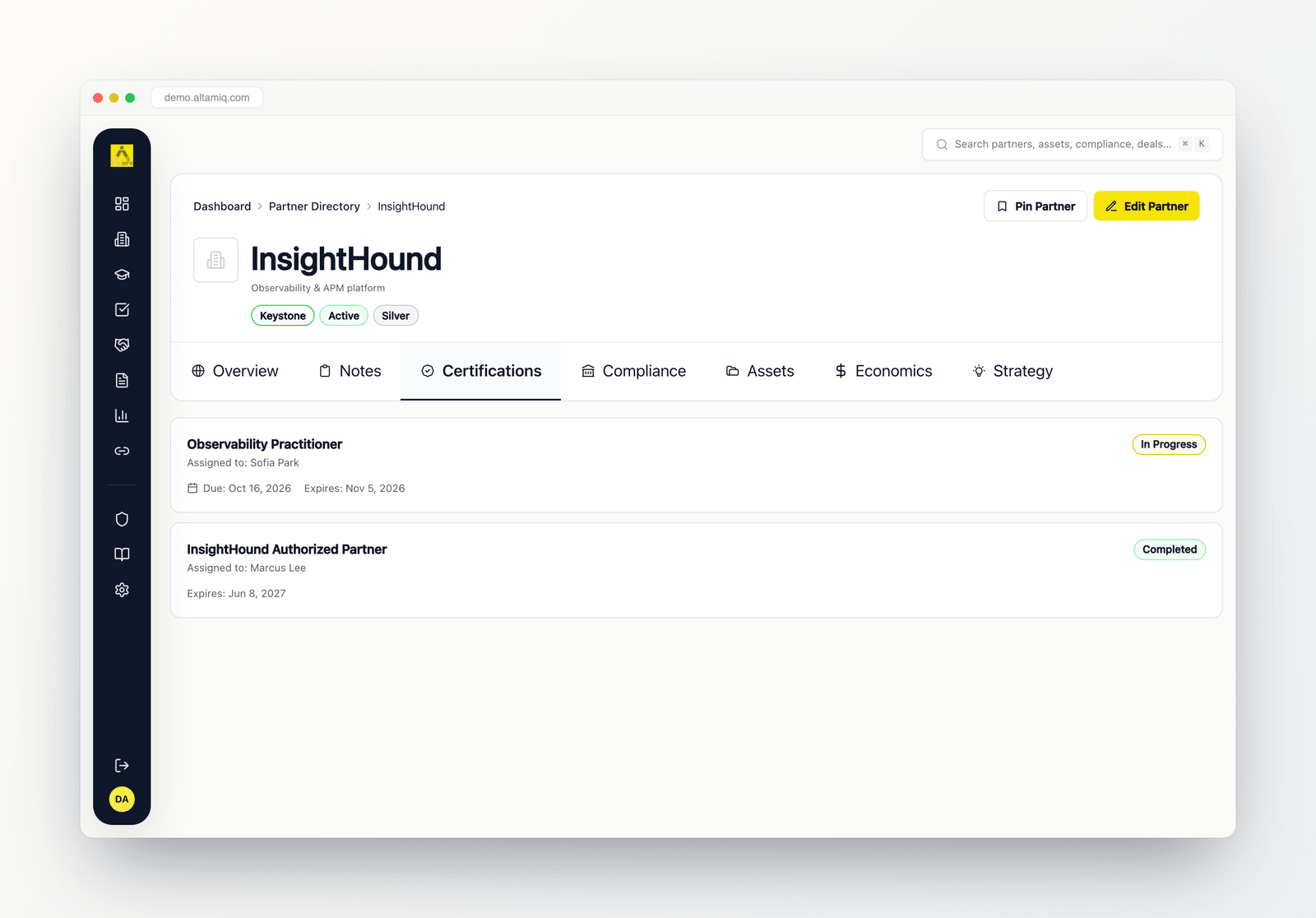
The Certifications tab open on a profile, listing each certification record below the header.
Overview
Overview
The Overview tab is the home base for the partner. At the top is the Partner Overview heading with the program description. Below that you may see cards for Partner Contact (name, title, email, and phone of the main point of contact), Internal Owner (with technical lead and marketing lead), and Quick Links (website, CRM link, portal, training, and admin links that open in a new tab). If the partner is synced from HubSpot, a HubSpot Info card appears with address, company phone, last contact date, and description, which you can expand or collapse.Further down, an Additional Details section holds four cards: Metadata (status, employee size, date applied, last reviewed, next review), Categories and Competitors, Financial Requirements (annual revenue, annual fee, monthly fee), and Internal Team. To change any of these values, use the Edit Partner button in the header.
Notes
Notes
The Notes tab holds the narrative about the partner. Read-only sections such as Program Overview, Value Proposition, and Why Teaming appear here when they have content, and are edited through Edit Partner. Below them is an Internal Notes card that Admin and Manager users can edit directly. Click Edit on that card, type in the rich text editor, and click Save. If you try to leave with unsaved changes, you are warned first. Viewers see the internal notes only when notes already exist, and they cannot edit them.
Certifications
Certifications
The Certifications tab lists every certification record tracked for this partner. Each card shows the certification name, who it is assigned to, the status (such as Completed or in progress), the due date, and the expiration date. Expired certifications are flagged in red with a warning icon. Any uploaded proof files are listed on the card and open in a secure viewer when clicked. Use the Manage Certifications link to add or edit certifications on the full Certifications page. If no records exist yet, the tab shows an empty state with the same link.
Compliance
Compliance
The Compliance tab tracks compliance requirements for the partner. Each card shows the requirement name, its compliance type, the status (such as Not Started, In Review, Compliant, Non-Compliant, Expired, or Pending Approval), and the due date. Items that are past due and not yet compliant are marked Overdue in red. Use the Manage Compliance link to add or edit items on the full Compliance page. If nothing is tracked yet, the empty state offers the same link.
Assets
Assets
The Assets tab is the partner’s marketing library. You can search assets by title or description and filter by file type such as PDF, Video, Presentation, Image, Document, Template, or Link. Assets are grouped into source tabs: External Assets, Internal Assets, Co-branded, and All Assets, each with a count. Admin and Manager users see an Upload Asset button and can edit assets, and new uploads default to the source tab you are viewing. Only Admin users can delete an asset. Viewers can browse and open assets but cannot upload, edit, or delete.
Economics
Economics
The Economics tab shows the money side of the partnership. At the top is a strip of up to four KPIs, such as blended margin, reseller tier, registered deals, and the best bundle. Below the KPIs are sections for the Product Catalog (products with unit price, unit cost, and margin), Wrap-Around Services (implementation, onboarding, and managed services), Bundles (named bundles with rolled-up economics), and an Economics Summary (blended margin, revenue mix, and attach rate). Two callouts at the bottom cover discount governance and tier advancement. Hover the small info icons for short explanations of each KPI.
Strategy
Strategy
The Strategy tab is a product-strategy worksheet for the partner. It has fields for Go-to-Market Goals, Unique Value Proposition, Key Use Cases, Target Industries, Competitive Landscape, Pricing Strategy, Success Metrics and KPIs, and Partnership Objectives. Type directly into any field and click Save Strategy in the top right to store your changes. The strategy is tied to this partner, so what you save here belongs only to this partner.