

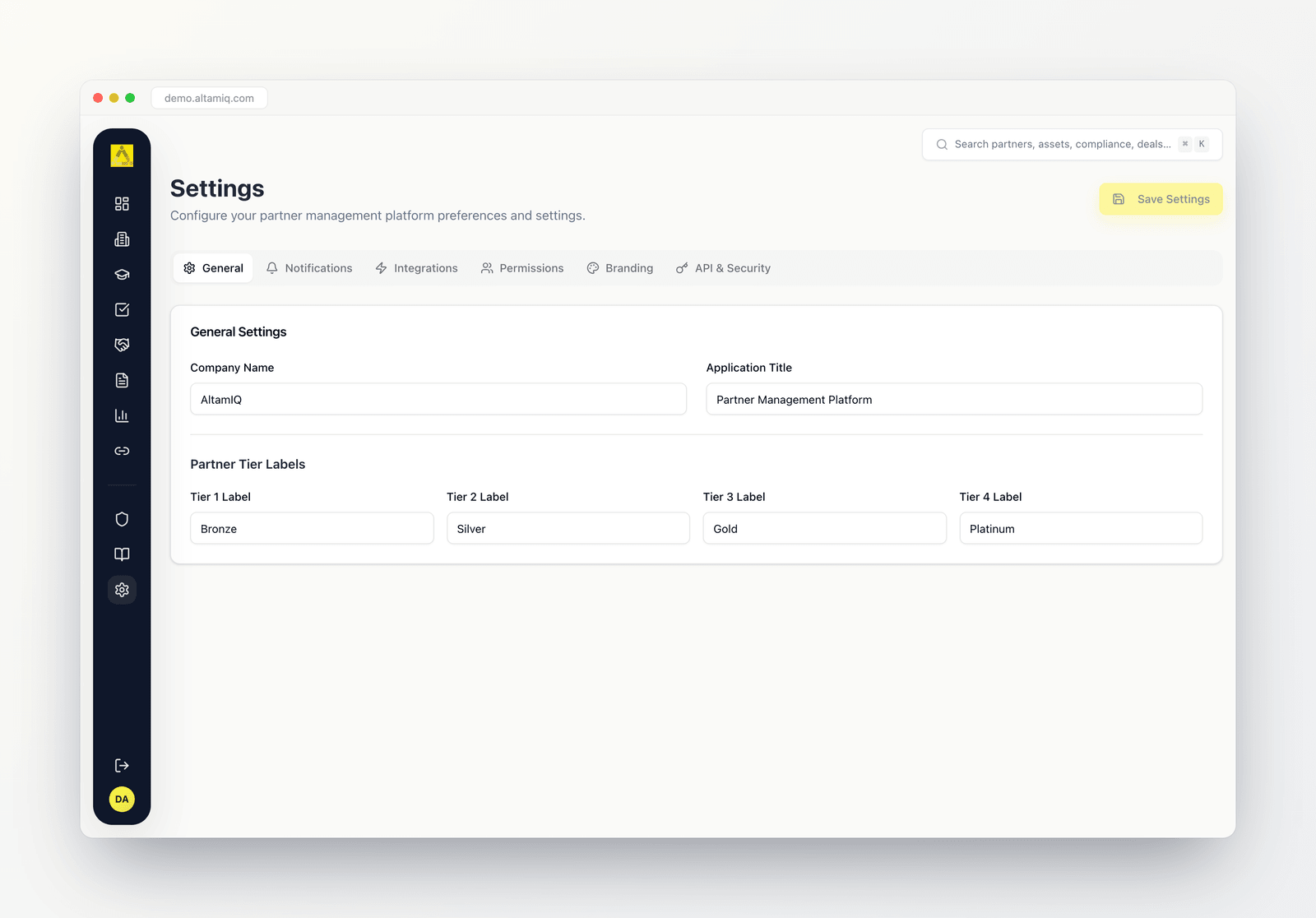
The Settings area with its tabs running across the top
Who can do what
Settings is mostly an Admin area. The tabs are the same across roles, but what you can actually change depends on your role.Admin
Full access. Admins manage team members and roles, connect and disconnect integrations, edit company details and tier labels, set branding, and change their own password.
Manager
Can view Settings tabs and change their own password. Managers can open the HubSpot Sync Dashboard from Integrations, but they cannot manage users or connect integrations.
Viewer
Can view Settings and change their own password. Viewers do not see the Sync Dashboard shortcut and cannot manage users or integrations.
The Permissions tab and connecting integrations are Admin-only. If you open a tab and see an “Access Denied” message, your current role does not allow that action. Ask an Admin on your team if you need a change made.
Saving your changes
The General, Notifications, Integrations, and Branding tabs share one Save Settings button in the top right of the page. As soon as you edit any field on those tabs the button becomes active. Click it to save everything at once.1
Make your edits
Move between the General, Notifications, Integrations, and Branding tabs and change whatever you need. Your edits are held until you save.
2
Click Save Settings
Use the Save Settings button at the top of the page. It stays disabled until there is something new to save.
3
Refresh for theme changes
Branding changes like your primary color and logo take effect after you save and refresh the page.
The tabs
General
The General tab holds your workspace basics.Company Name
The name of your company, shown across the platform. Defaults to AltamIQ.
Application Title
The display name for the platform itself, such as “Partner Management Platform”.
Partner Tier Labels
The names for your four partner tiers. They default to Bronze, Silver, Gold, and Platinum, and you can rename each one to match the language your program uses.
Notifications
The Notifications tab controls how your team is reminded and alerted.Email Notifications
A switch for sending email notifications about important updates. On by default.
Slack Notifications
A switch for sending notifications to Slack channels. Off by default.
Certification Reminder (Days)
How many days before a certification expires to start sending reminders. Defaults to 30.
Deal Reminder (Days)
How many days before a deal’s close date to start sending reminders. Defaults to 7.
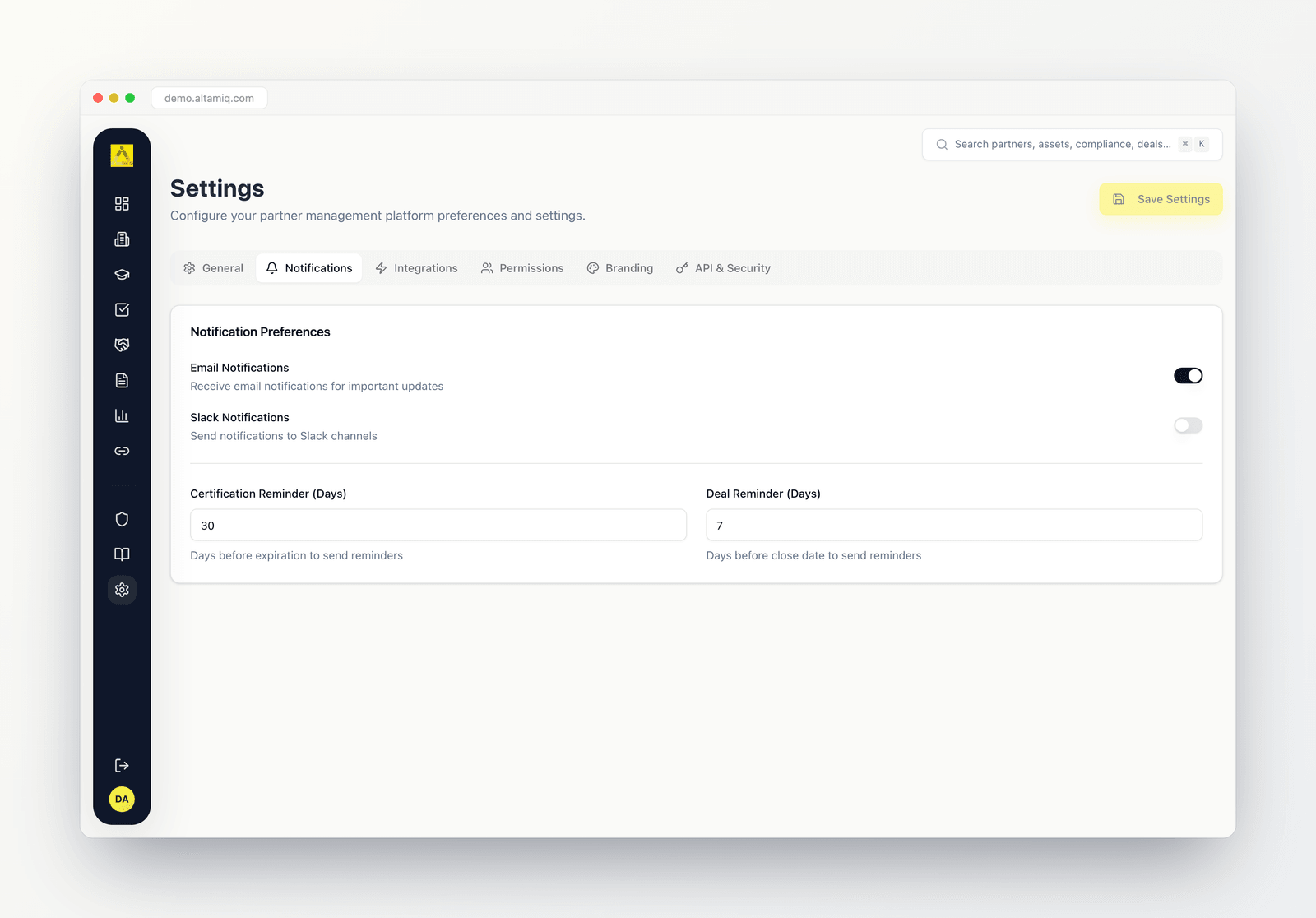
The Notifications tab, with switches for email and Slack plus reminder timing
Integrations
The Integrations tab is where you connect AltamIQ to the other tools you use, and where you control API and webhook access.- API Access turns REST API access on or off for integrations. On by default.
- Webhook Support lets external systems receive webhooks. Off by default.
- HubSpot is the connected integration. An Admin connects it by pasting a HubSpot access token, and once connected you’ll see a green status indicator, the connected portal, and when it last synced. Only Admins can connect or disconnect HubSpot.
- Slack and Zapier appear as future integration options on this tab.
Connecting or disconnecting HubSpot is Admin-only. Managers and Viewers can see the integration status but cannot change the connection.
Permissions
The Permissions tab is where Admins manage the team. This tab is Admin-only: Managers and Viewers who open it see an “Access Denied” message instead of the team list. Each team member is shown with their name, email, role badge, and whether their account is Active or Inactive.1
Add a user
Click Add User, then enter their full name, email, a temporary password, and a role. New users are created with a temporary password and must change it on their first login.
2
Choose a role
Pick Viewer for read-only access, Manager for read and write access, or Admin for full access.
3
Edit a user
Use Edit on any row to change a person’s name, switch their role, or toggle their account active or inactive. An inactive account cannot log in until you reactivate it.
4
Delete a user
Use Delete on a row, then type “delete” to confirm. This permanently removes the account and ends their access right away.
You cannot delete your own account. A temporary password must be at least 8 characters and include an uppercase letter, a lowercase letter, and a number. If a user still needs to change their password, their row shows a reminder.
Branding
The Branding tab lets you match AltamIQ to your look.Primary Color
Choose your brand color with the color picker or by entering a hex value like #3b82f6.
Company Logo URL
Point to your logo by pasting its web address.
API & Security
The API & Security tab is where you change your own password. This is available to everyone, whatever your role.1
Enter your current password
Type the password you use to log in today.
2
Enter and confirm a new password
Choose a new password of at least 8 characters, then type it again to confirm. Both entries must match.
3
Update your password
Click Update Password. You’ll see a confirmation once the change goes through.