

This page always shows one partner at a time. Every asset here is tied to that partner. If you want to browse assets across all partners at once, use the main Marketing Assets library instead.
How you get here
You always reach Partner Assets from a partner, never on its own.1
Open a partner
Go to the Partner Directory and find the partner you want.
2
Open their assets
Click into the Partner Profile and choose the Assets tab, or use the partner’s quick action to jump straight to their assets.
3
See only their materials
The view loads the assets that belong to that partner and nothing else. Switching from one partner to another refreshes the view so you never see the wrong partner’s files.
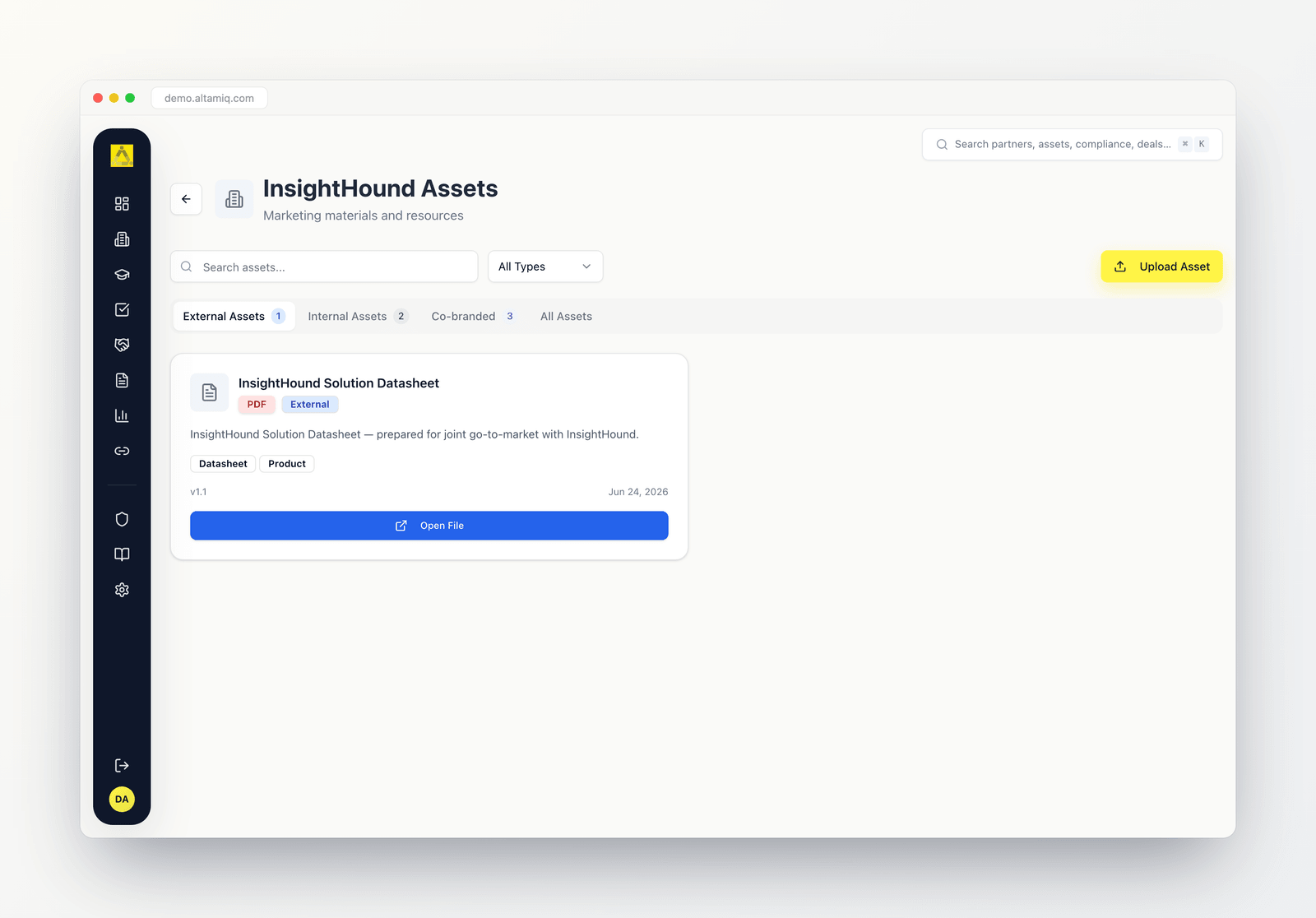
The per-partner asset view, showing one partner's materials grouped into External, Internal, and Co-branded source tabs.
What you see
At the top of the view you get a search box and a file-type filter. Below them are source tabs, and under the active tab is a grid of asset cards.Source tabs
Assets are split by where they come from, and each tab shows a count so you know how many are in each group.External Assets
Materials the partner provided to you.
Internal Assets
Materials your own company created for this partner.
Co-branded
Materials that carry both your brand and the partner’s brand.
All Assets
Everything for this partner in one combined list.
Asset cards
Each card shows the asset title, a file-type badge (PDF, Video, Presentation, Image, Document, Template, or Link), a source badge, an optional description, any tags, the version, and the date it was added. If an asset has an expiration date that has passed, the card is dimmed and shows an “Expired on” note so you can tell it is out of date.Finding an asset
1
Pick a source tab
Start on External, Internal, Co-branded, or All Assets depending on what you are after.
2
Search by name
Type in the search box to match against asset titles and descriptions.
3
Filter by type
Use the type dropdown to narrow to a single file type such as PDF or Video.
Opening and downloading
To view an asset, click its title or the Open File button on the card. For a card menu, use the three-dot menu in the top corner. File-based assets offer both Download and View File. A Link asset opens the saved web address directly and shows Open Link instead of a Download option, which is handy for partner resources that live on a portal and cannot be downloaded.Uploading and editing assets
If your role allows it, you can add and update assets from this view.1
Start an upload
Click Upload Asset. A form opens already tied to this partner, with the source pre-set to match the tab you were on.
2
Add a file or a link
Choose a file to upload, or switch the file type to Link and paste a web address for resources that cannot be downloaded. Uploaded files must stay under the size limit shown on the form, and the file type is detected for you.
3
Fill in the details
Give the asset a title, then optionally set the source, version, campaign name, expiration date, description, and tags.
4
Save
Save the asset. The grid refreshes so your new or updated asset shows right away.
When you edit an existing asset, the file is optional. Leave the file field empty to keep the current file, or choose a new one to replace it.
How this relates to the Marketing Assets library
Partner Assets and the main Marketing Assets library show the same underlying materials, just filtered differently. Partner Assets narrows everything down to one partner and adds the External, Internal, and Co-branded source tabs. The Marketing Assets library is the wider view across all partners. Anything you upload here is tied to this partner and also appears in the library, so you do not have to add it twice.Who can do what
Admin
Full access. Search, open, download, upload, edit, and delete assets.
Manager
Can search, open, download, upload, and edit assets, but cannot delete them.
Viewer
Read-only. Can search, open, and download assets, but cannot upload, edit, or delete.
Deleting an asset is limited to Admins. If you do not see Upload, Edit, or Delete options, your role does not include those permissions.