> ## Documentation Index
> Fetch the complete documentation index at: https://docs.altamiq.com/llms.txt
> Use this file to discover all available pages before exploring further.
# Roles & Permissions
> Understand the three AltamIQ roles (Admin, Manager, and Viewer), what each one can do, and how to find out which role you have.
Roles keep your workspace organized and secure by making sure each person has exactly the access they need, no more and no less. Everyone on your team is assigned one of three roles, and that role decides what you can see and change across AltamIQ.
## The three roles
Full access. Admins can view everything and create, edit, and delete any business data. They also manage the things no one else can touch: team members and their roles, workspace settings, the HubSpot integration, and licensing.
The day-to-day doers. Managers can view everything and create and edit business data: partners, deals, tasks, certifications, compliance, assets, affiliates, the knowledge base, and product strategy. Deleting records and managing users, settings, integrations, and licenses stay with Admins.
Read-only. Viewers can browse and open everything in the workspace, but they can't create, edit, or delete anything. It's the right fit for stakeholders who need visibility without making changes.
## What each role can do
The table below shows the common actions across AltamIQ and which roles can perform them. A ✓ means "yes," and a — means "not available for that role."
| Action | Admin | Manager | Viewer |
| - | :-: | :-: | :-: |
| View data (partners, deals, dashboards, etc.) | ✓ | ✓ | ✓ |
| Create & edit Partners | ✓ | ✓ | — |
| Delete Partners | ✓ | — | — |
| Create & edit Deals | ✓ | ✓ | — |
| Delete Deals | ✓ | — | — |
| Create & edit Tasks | ✓ | ✓ | — |
| Delete Tasks | ✓ | — | — |
| Manage Certifications & Compliance | ✓ | ✓ | — |
| Delete Certifications & Compliance | ✓ | — | — |
| Upload & manage Assets | ✓ | ✓ | — |
| Delete Assets | ✓ | — | — |
| Manage Affiliates | ✓ | ✓ | — |
| Manage Knowledge Base | ✓ | ✓ | — |
| Manage Product Strategy | ✓ | ✓ | — |
| View the HubSpot Sync Dashboard | ✓ | ✓ | — |
| Manage Users | ✓ | — | — |
| Manage Settings | ✓ | — | — |
| Manage the HubSpot integration | ✓ | — | — |
| Manage Licenses | ✓ | — | — |
There's an important distinction between **editing** and **deleting**. Managers can create and edit business data throughout the app, but **only Admins can delete records**. If you're a Manager, you'll notice the edit options are available while delete is not.
## How to tell which role you have
Your role is always visible in the app, so you never have to guess:
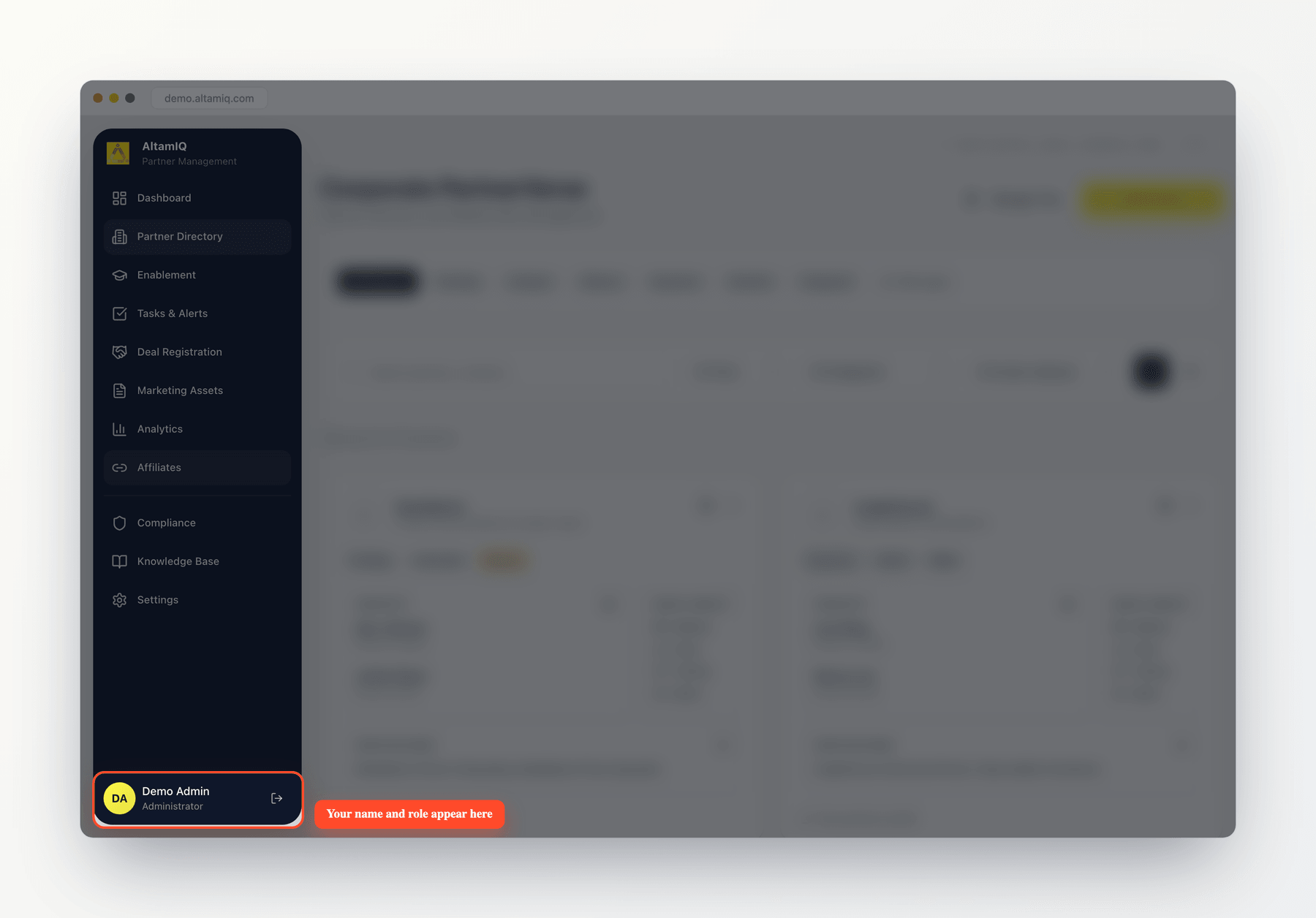
* **In the sidebar.** Hover over the slim navigation rail on the left to expand it. At the bottom you'll see your name and your role, shown as **Administrator**, **Manager**, or **Viewer**. On a phone, open the menu from the top-right corner to see the same details.
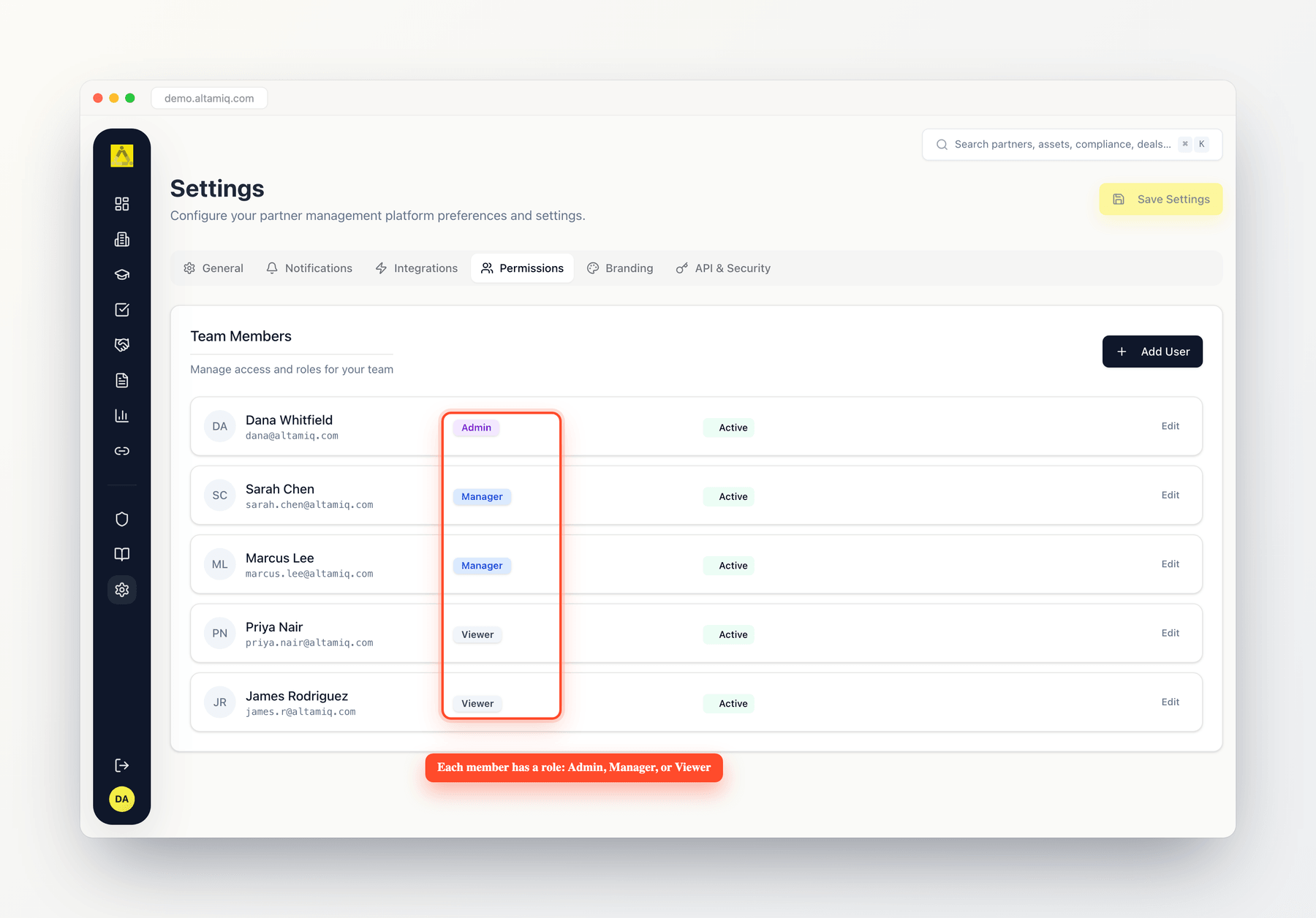
* **In Settings → Permissions (Admins only).** If you're an Admin, open **Settings** and go to the **Permissions** tab to see every team member listed with a colored role badge next to their name.
 If an action you expect isn't there (for example, no **Add** button on a page, or a missing **Delete** option), it's usually because your current role doesn't include that permission.
## Need more access?
Only an Admin can change roles or add new team members. If you need to do something your role doesn't allow, reach out to an Admin on your team and ask them to update your role or make the change for you. Admins manage everyone's access from **Settings → Permissions**.
A couple of built-in safeguards are worth knowing about:
* **The last Admin can't be removed.** AltamIQ won't let anyone delete or demote the final active Admin, so your workspace is never left without someone in charge.
* **Admins can't lock themselves out.** An Admin can't remove their own Admin role or deactivate their own account.
* **New accounts start with a temporary password.** When an Admin creates your account, you're given a temporary password and asked to set your own the first time you sign in.
If an action you expect isn't there (for example, no **Add** button on a page, or a missing **Delete** option), it's usually because your current role doesn't include that permission.
## Need more access?
Only an Admin can change roles or add new team members. If you need to do something your role doesn't allow, reach out to an Admin on your team and ask them to update your role or make the change for you. Admins manage everyone's access from **Settings → Permissions**.
A couple of built-in safeguards are worth knowing about:
* **The last Admin can't be removed.** AltamIQ won't let anyone delete or demote the final active Admin, so your workspace is never left without someone in charge.
* **Admins can't lock themselves out.** An Admin can't remove their own Admin role or deactivate their own account.
* **New accounts start with a temporary password.** When an Admin creates your account, you're given a temporary password and asked to set your own the first time you sign in.
 This documentation is built and hosted on [Mintlify](https://mintlify.com), a developer documentation platform.