> ## Documentation Index
> Fetch the complete documentation index at: https://docs.altamiq.com/llms.txt
> Use this file to discover all available pages before exploring further.
# How AltamIQ Works
> The mental model behind AltamIQ. The partner is the hub, and every deal, certification, compliance record, asset, and plan hangs off it.
## The core idea
AltamIQ is a Partner Relationship Management (PRM) app, and everything in it revolves around one thing: the **partner**. A partner is a company you work with, and every other record you track (the deals you register, the certifications your teams earn, the compliance items you monitor, the marketing assets you share, and the strategy you plan together) connects back to that one partner. Once you learn to think "partner first," the whole app clicks into place.
## The partner is the hub
```mermaid theme={null}
flowchart TD
P(("Partner"))
P --- D["Deals"]
P --- C["Certifications"]
P --- CO["Compliance"]
P --- A["Assets"]
P --- S["Strategy"]
P --- T["Tasks"]
P --- E["Economics"]
```
Think of the partner as the center of a wheel. Each spoke is a different kind of record, and each one is always attached to a specific partner. When you open a partner, you see all of their spokes gathered in one place.
## How information gets in
Partners can arrive in AltamIQ two ways:
A team member adds a partner directly in AltamIQ and fills in the details: name, type, contacts, and headquarters.
When a company in HubSpot is tagged as a partner, it flows into AltamIQ automatically. This is a one-way sync (HubSpot to AltamIQ), so your CRM stays the source of truth and AltamIQ keeps the matching partner up to date.
Everything else (deals, certifications, compliance items, assets, tasks, and strategy notes) is added by your team as work progresses. You attach each record to the partner it belongs to, and it shows up on that partner's profile from then on.
Fresh partners start as the **Pending** type until someone classifies them, and their lifecycle status begins at an early stage such as **Submitted**. Both are yours to update as the relationship grows.
## A typical journey
Here is how a partner usually moves through AltamIQ from first contact onward.
Someone creates the partner by hand, or it syncs in from HubSpot. You classify its **type** (Pending, Catalyst, Alliance, Keystone, Sentinel, or Vanguard) and set its **tier**.
As opportunities come up, you register **deals** against the partner and track them through the pipeline.
You record which **certifications** the partner's people have earned and monitor the **compliance** items they need to stay in good standing.
You give the partner access to **marketing assets** and capture the **strategy** for growing the relationship.
Analytics roll everything up so you can see how partners, deals, and certifications are trending across your whole program.
## Everything lives in the partner profile
Open any partner and you land on their profile: a single page with a row of tabs, one per kind of record. You never have to hunt across the app to understand a partner; it is all right here.
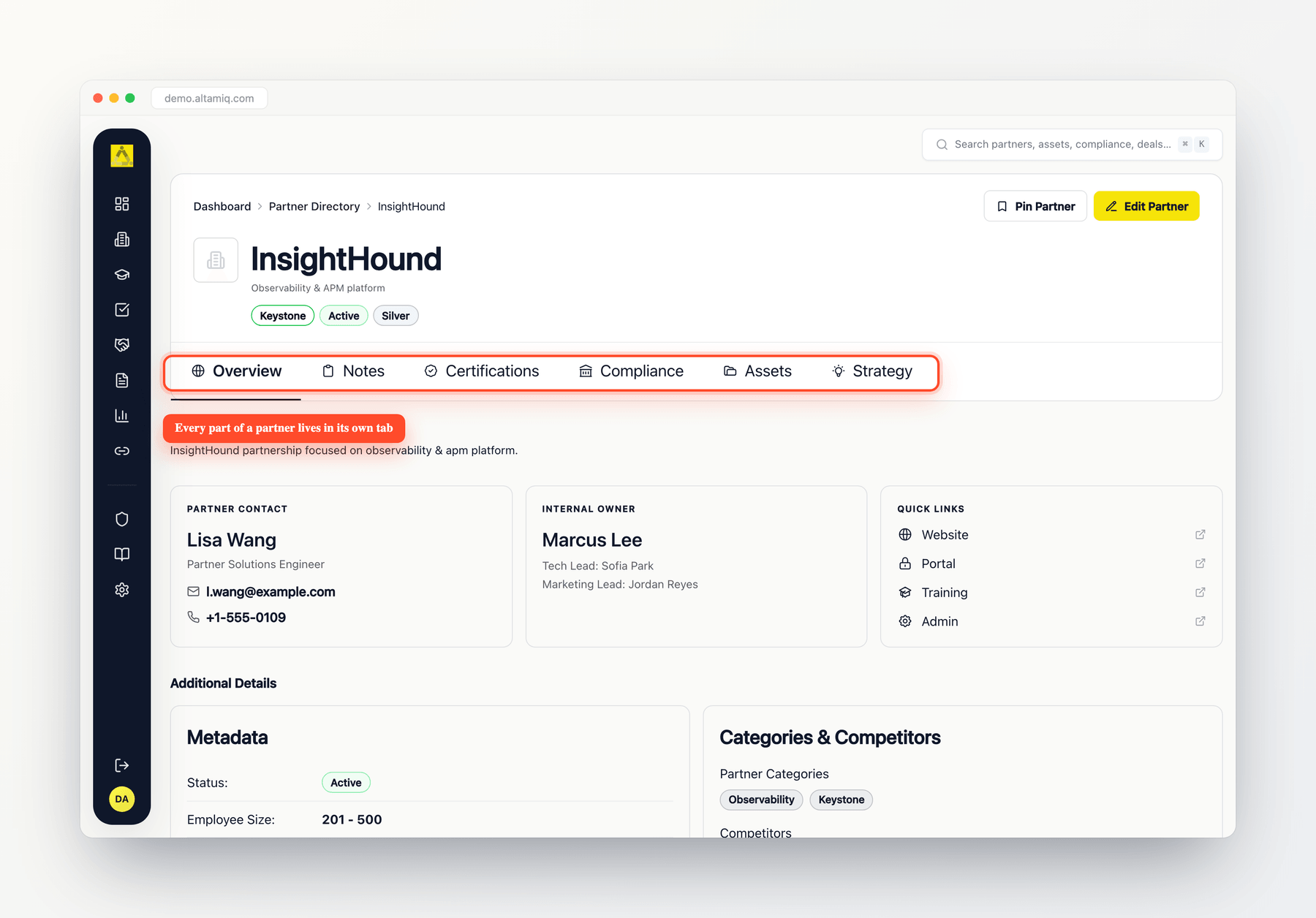 The tabs you will see are **Overview**, **Notes**, **Certifications**, **Compliance**, **Assets**, **Economics**, and **Strategy**. Each tab shows only the records tied to the partner you are viewing.
What you can change depends on your role. **Admins** and **Managers** can add and edit records, while **Viewers** can look but not make changes.
## Key terms
A company you have a relationship with. It is the hub of the app: every other record connects back to a partner.
A classification for the partner's role in your program: **Pending** (not yet classified), **Catalyst**, **Alliance**, **Keystone**, **Sentinel**, or **Vanguard**. Your team can also define custom types.
A ranking or level you assign to a partner to reflect its standing or investment in the program.
A sales opportunity you register against a partner and follow through the pipeline.
A record that a partner's people have completed a required training or accreditation.
A requirement a partner must meet to stay in good standing, tracked so nothing lapses.
A marketing or enablement file you make available to a partner.
An affiliate program or referral arrangement tracked alongside your partners.
This documentation is built and hosted on [Mintlify](https://mintlify.com), a developer documentation platform.
The tabs you will see are **Overview**, **Notes**, **Certifications**, **Compliance**, **Assets**, **Economics**, and **Strategy**. Each tab shows only the records tied to the partner you are viewing.
What you can change depends on your role. **Admins** and **Managers** can add and edit records, while **Viewers** can look but not make changes.
## Key terms
A company you have a relationship with. It is the hub of the app: every other record connects back to a partner.
A classification for the partner's role in your program: **Pending** (not yet classified), **Catalyst**, **Alliance**, **Keystone**, **Sentinel**, or **Vanguard**. Your team can also define custom types.
A ranking or level you assign to a partner to reflect its standing or investment in the program.
A sales opportunity you register against a partner and follow through the pipeline.
A record that a partner's people have completed a required training or accreditation.
A requirement a partner must meet to stay in good standing, tracked so nothing lapses.
A marketing or enablement file you make available to a partner.
An affiliate program or referral arrangement tracked alongside your partners.
This documentation is built and hosted on [Mintlify](https://mintlify.com), a developer documentation platform.